

From a room scan
to your next project.
Capture spaces on your iPhone. View your saved 3D scans on the web and export the files you need.
Private account. Sync is optional.
Architectural visualisation
See the room.
Inspect the detail.
Rotate a scan, switch to its plan and check what was captured. Keep original 3D data alongside room outlines, dimensions and survey notes.
Try the model viewer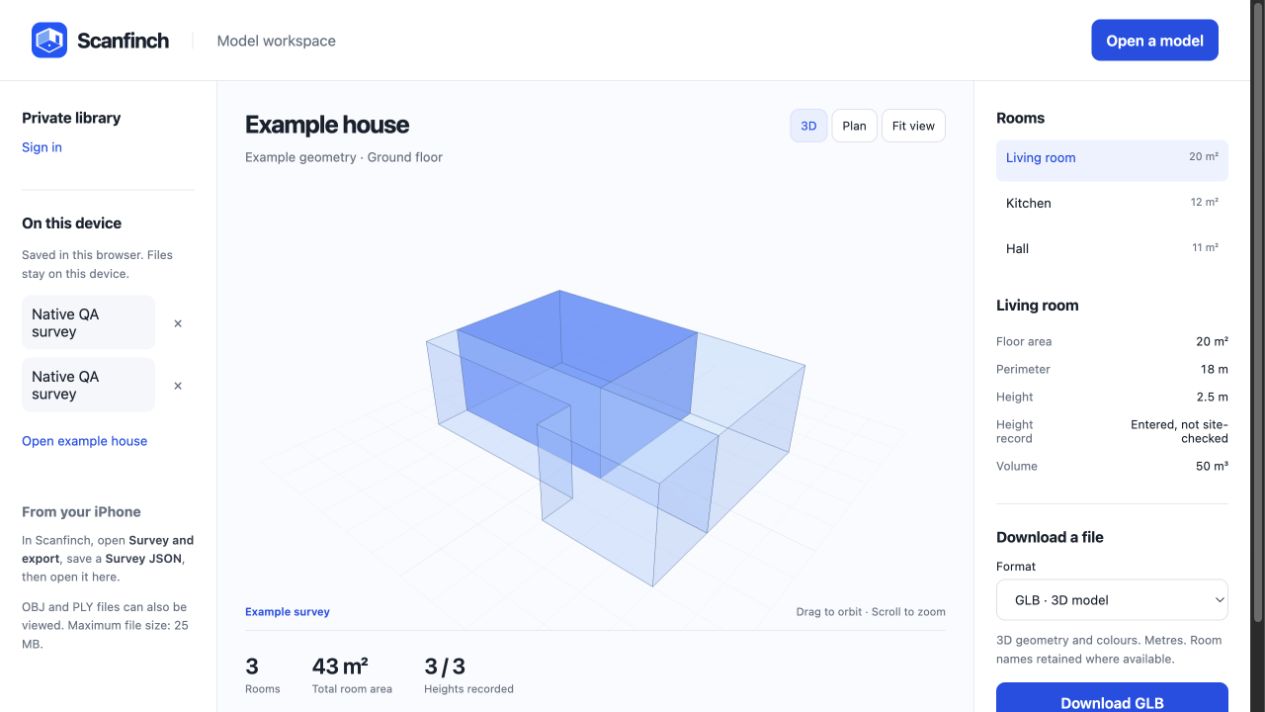
From your iPhone
to the bigger picture.
-
Capture a space
Scan with a compatible iPhone, or draw or import a floor plan. Review the room outlines and record any missing heights.
-
Keep it private
Sign in on your phone and the web with the same email. Enable automatic sync, then choose whether to include original 3D scans.
-
View and export
Open a saved scan in the workspace. Download the original capture or choose a supported format for the geometry it contains.
Room scanning requires a supported LiDAR device. Original 3D scans can include captured interior detail. Photos and WiFi readings are not part of 3D scan sync.
A file for
the next step.
Keep the original and choose a hand-off that suits the receiving software. Available formats depend on the scan, its geometry and the details you have recorded.
File and survey helpOriginal capture
PLY · USDZ
Retained point clouds, RoomPlan geometry and textured models, where available. Original captures keep their captured coordinate frame.
3D geometry
GLB · OBJ · PLY · STL
View and exchange supported geometry. Point clouds stay as points; STL needs a surface mesh. Room envelopes need a height for every room.
Plans and dimensions
DXF · CSV · JSON
Room outlines, dimensions, height records and notes from a survey. Mesh-only files do not invent room records.
Check critical dimensions on site. These are geometry hand-offs, not certified surveys, lighting calculations or native IFC/Revit projects. Confirm format support and units in the receiving software.